¶ Trucks
¶ Vehicle Dealer
Offers several types of vehicles:
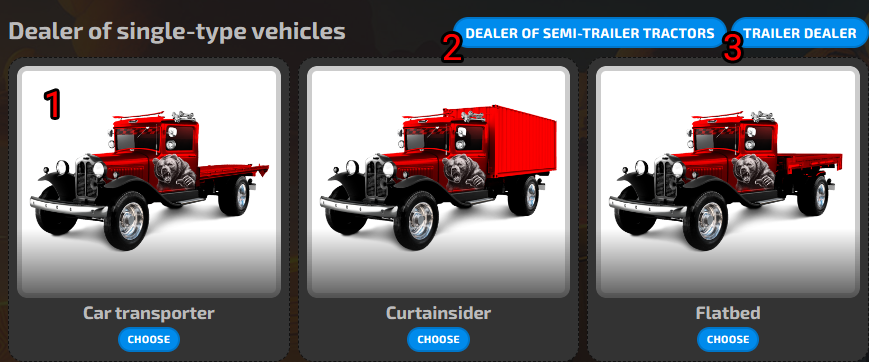
- Basic Vehicles: Refrigerated, Tanker, Timber, Passenger, Curtainside, Platform, Vehicles, Dump Truck, Grain, Animals
- Tractor Units.
- Tractor Trailers: Refrigerated, Tanker, Timber, Hazardous, Curtainside, Platform, Vehicles, Silo, Glass, Dump Truck, Grain, Animals.
When purchasing, you must choose the garage you want to place the vehicle in and have a free space for it. You can also customize its appearance.
¶ Vehicle Specifications
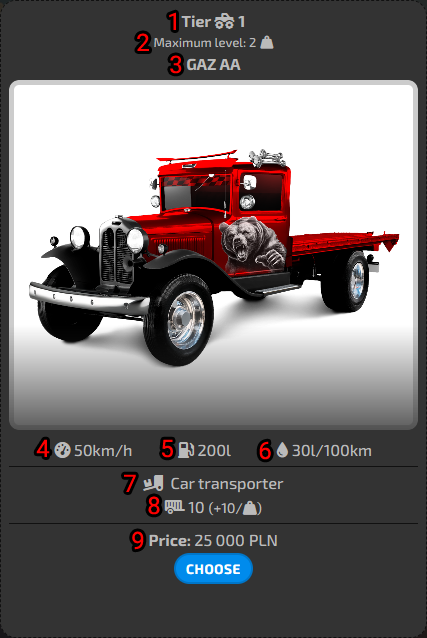
- Car Tier (the most important feature of a vehicle; the higher the tier, the stronger all bonuses for the car become)
- Maximum Tier to which it can be upgraded
- Name
- Speed
- Tank Capacity
- Fuel Consumption per 100 km
- Vehicle Type
- Cargo Capacity and Bonus after Upgrade
- Price
¶ Trucks
Here you'll find all the cars we have. To search for a specific one, you can use filters, and the options for managing a given vehicle are:
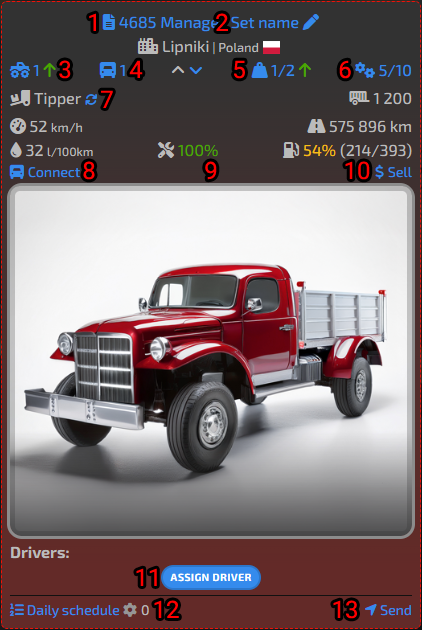
- Here you'll find a full range of vehicle management options.
- You can assign a custom name.
- Tier upgrade.
- Convoy management.
- Level/cargo capacity upgrade.
- Upgrades.
- Type.
- Joining a convoy.
- Visual modifications.
- Upgrade the vehicle's level to the current tier and the ability to change its cargo type. To upgrade, you must first research the technology.
- Driver assignment.
- Automation of vehicle tasks, requiring no intervention.
- Ability to travel unladen to other cities or return to the garage.
¶ Schedule
It allows us to automate transportation. To set it up, go to "Vehicles," then "Task Scheduler" next to the vehicle (Item 13 in the photo above). At the top, there's a "Add Task" button, which will display all the options: handling company tasks, buying, selling, transporting vehicles, etc. Select the category you're interested in and add it.
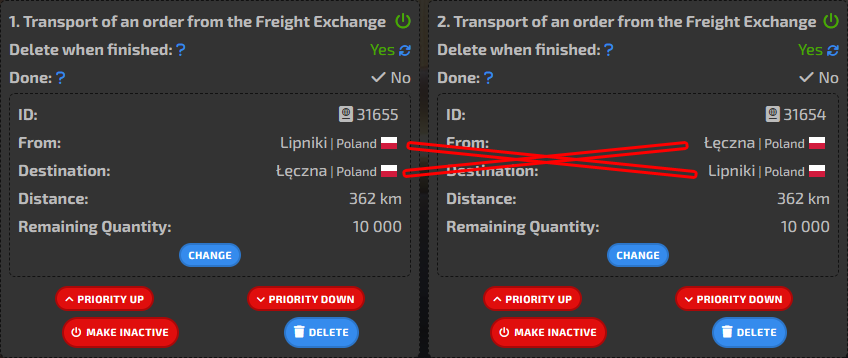
We can assign an unlimited number of tasks, allowing us to plan a route for an entire day or even several days. For example, the photo shows two tasks, where the second starts in the town where the first one ends, to maximize profits and avoid empty runs.
It's also important to add a "Vehicle Transit" task at some point between routes and select a town with a garage to which the vehicle is assigned. This is because driving can lower driver morale, requiring replacement with rested drivers, and the vehicle can break down, requiring a mechanic. If either of these two needs arises, it will be automatically completed upon return, and the vehicle will continue its journey with its assigned tasks.
¶ Drivers
Drivers are hired with assignments to a garage where they will service cars. The assignment consists of two drivers per car. Each driver has a morale score (maximum 150), which decreases while driving, slowing down the car. They also gain experience while driving, allowing them to cover distances faster. Morale regenerates automatically when drivers are in the garage, and to further accelerate regeneration, a recreation center can be built.
¶ Top Tips
- At least 4-8 drivers per vehicle, depending on whether the vehicle runs 24/7 or not.
- Build Recreation Centers where we have the most vehicles. If we build a Training Center, then a Recreation Center is also necessary.
- Make sure Recreation Centers are turned on and set to 150%.
- Set up returns to garages along the route, DESTINATION CITY => Return to garage (driver swap)
¶ Freight exchange
Tasks involving small loads can be transported at the beginning of the game. The exchange will be blocked upon joining a company, where we will receive more diverse tasks with larger loads and earnings. These tasks, like all others, can be scheduled to automate their transport. When searching for tasks, it is recommended to use filters to further specify what interests us, e.g., cargo type, quantities, starting locations, and others. The icons visible on the map are the cargo (starting location) and the flag (ending location).
¶ Searching for orders
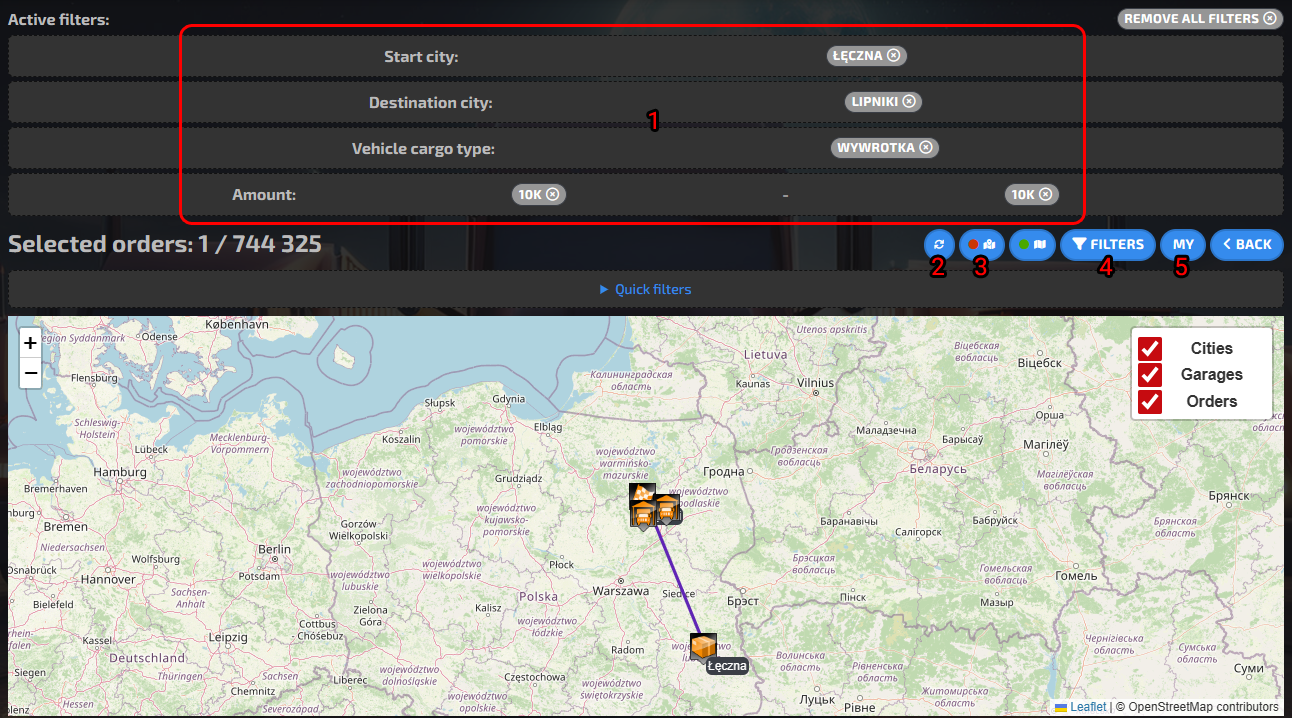
- Acceptable orders are displayed below the map.
- However, there can be many of them. To make it easier to find the one you're interested in, activate this button so the dot turns green. As you move around the map and zoom in on the order you're interested in (flag), the list below the map will display only what's visible within the map.
- Show/hide map, useful for hiding the map on other pages, especially on phones.
- Filters to set. You won't always find an order from the specified starting location; in that case, the system will display orders from nearby locations.
- A page with assigned stock market tasks.
- Paging to maintain greater order on the map.
¶ Send order
We can send an order in two ways:
- Go to the list of our orders, click "Show vehicles" next to the desired one, select one or more vehicles, and click "Send vehicles."
- Schedule.